
MCP Integration
MCP (Model Context Protocol) is an open protocol that enables AI models to interact with external tools and data sources in a standardized way.
Greenative Studio provides MCP servers for reading and writing local files and for integrating with Greenative Platform.
This section explains how to use MCP integration to read local files within a thread.
A license is required to use MCP integration.
Purchase a license from the license purchase page, and then register your license key.
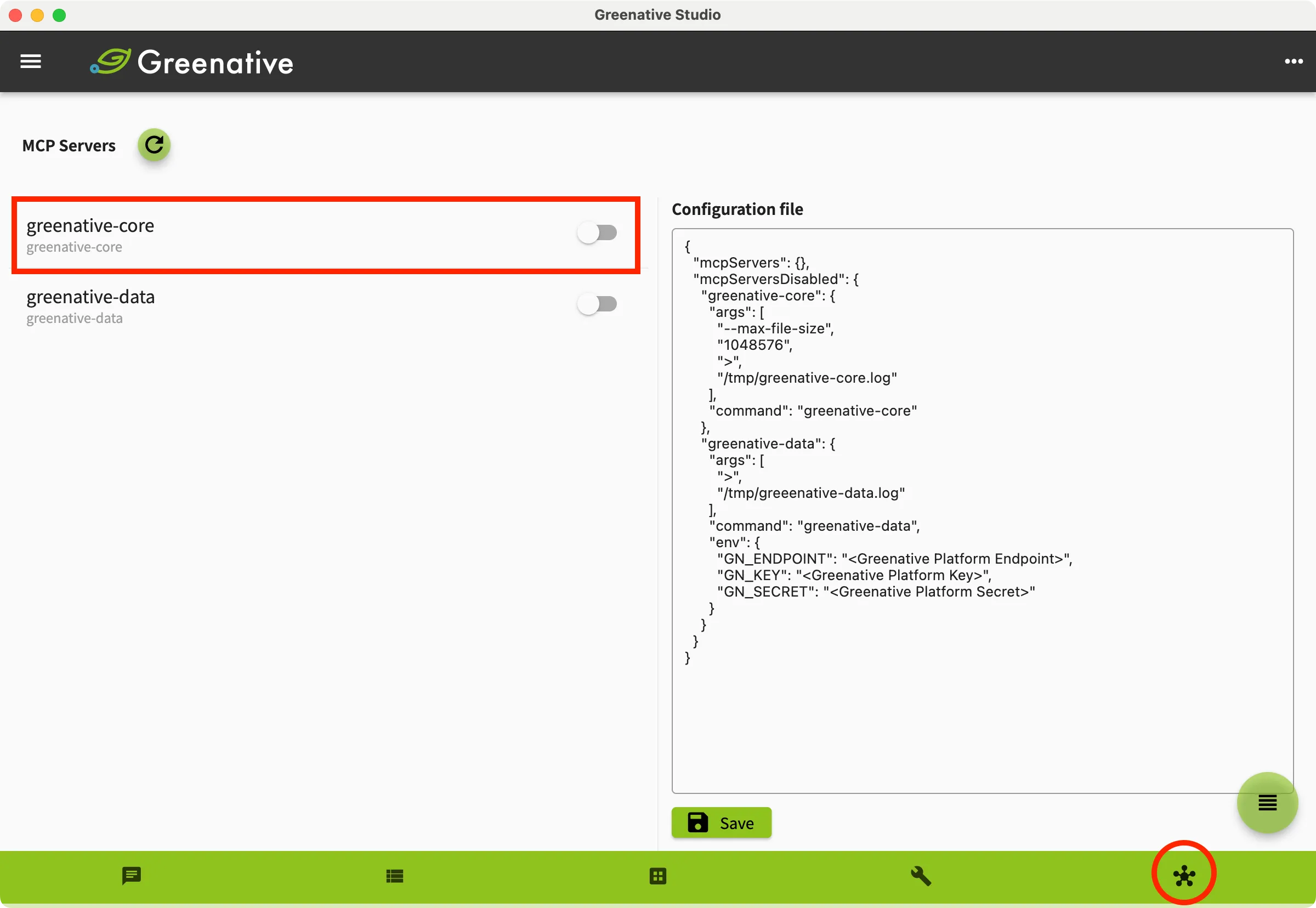 |
1. Click “MCP” on the bottom navigation bar to display the MCP integration screen. Turn on “greenative-core” in the red highlighted area. |
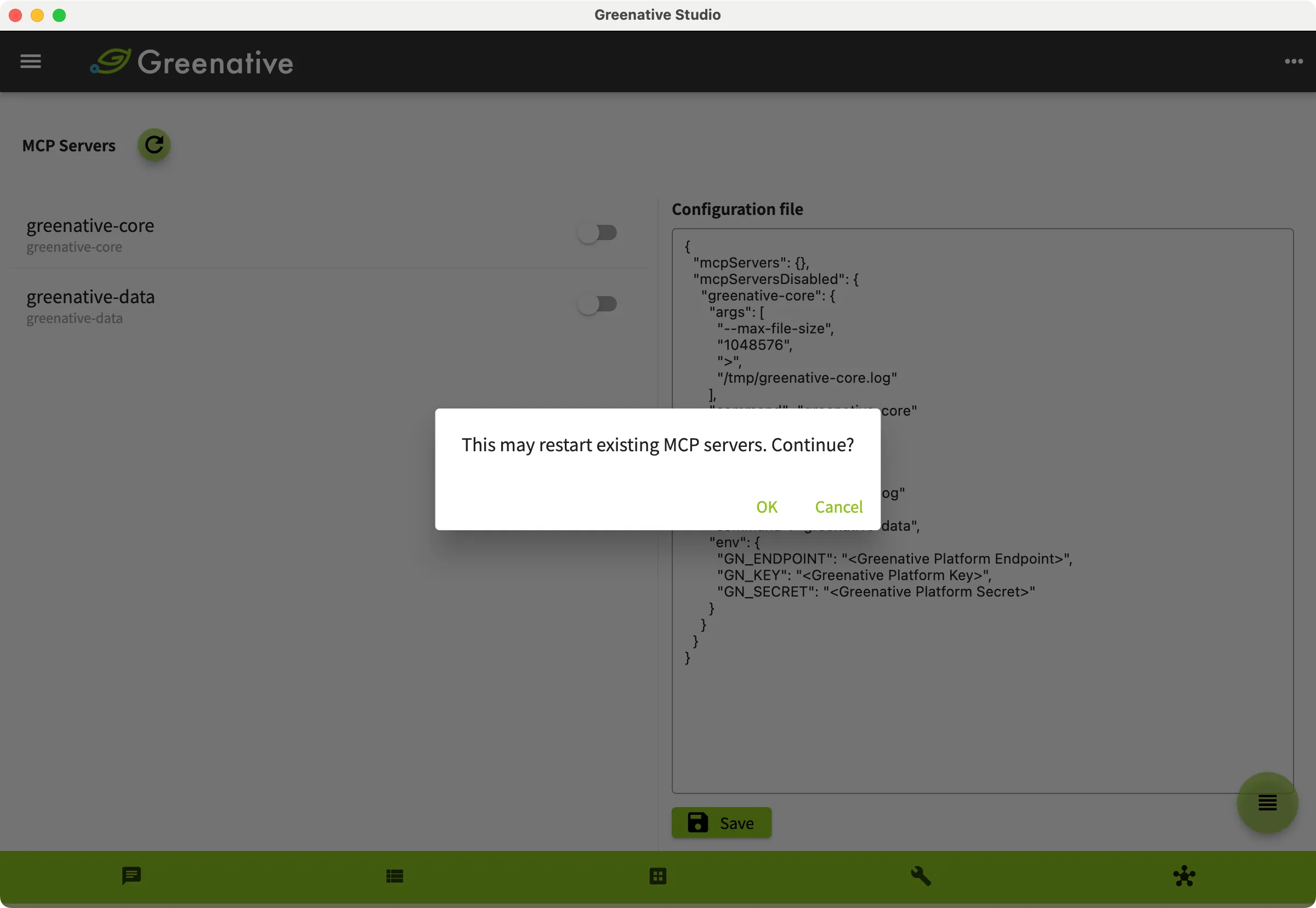 |
2. Check the message and click “OK”. |
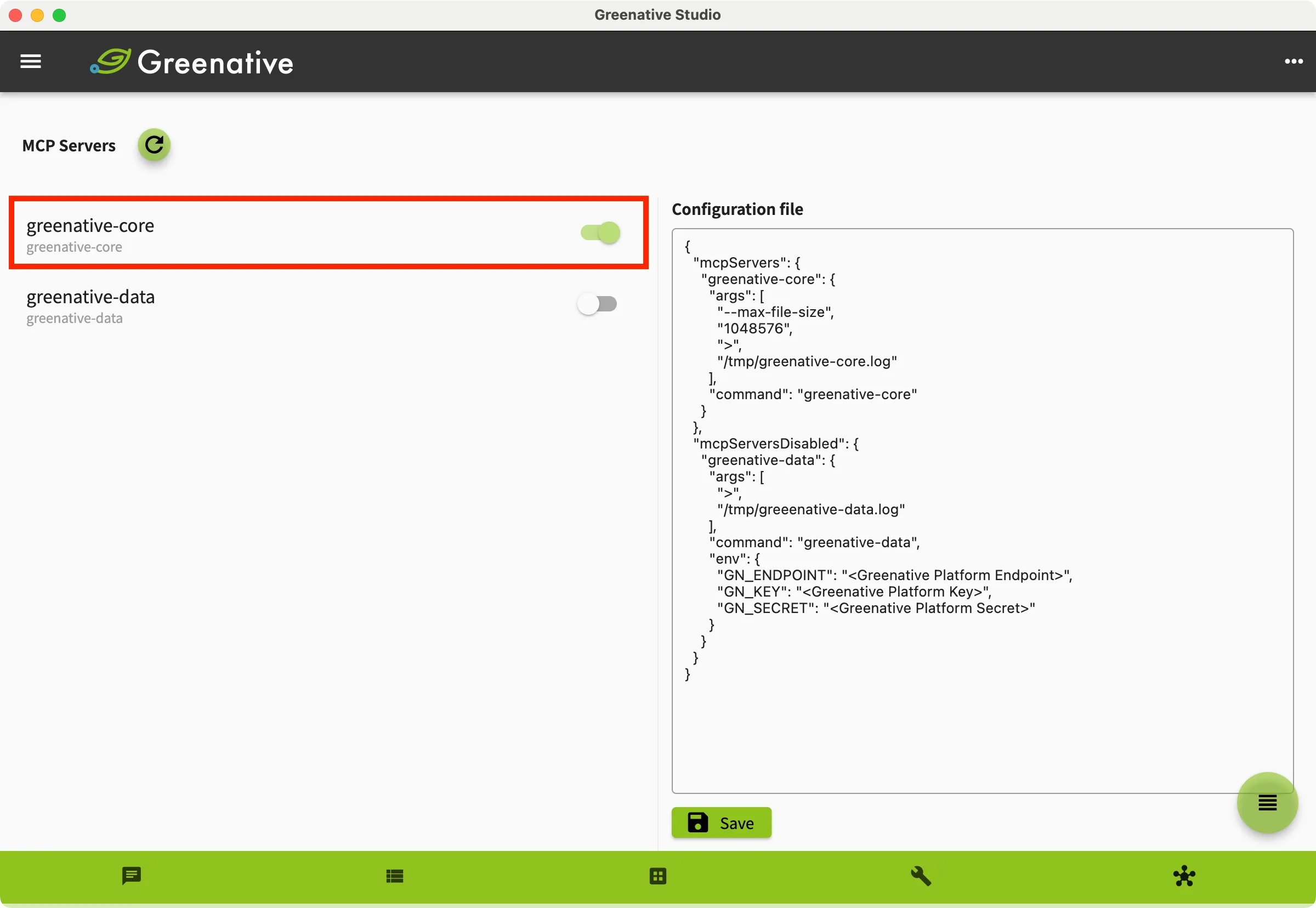 |
3. Confirm that “greenative-core” in the red highlighted area is turned on. |
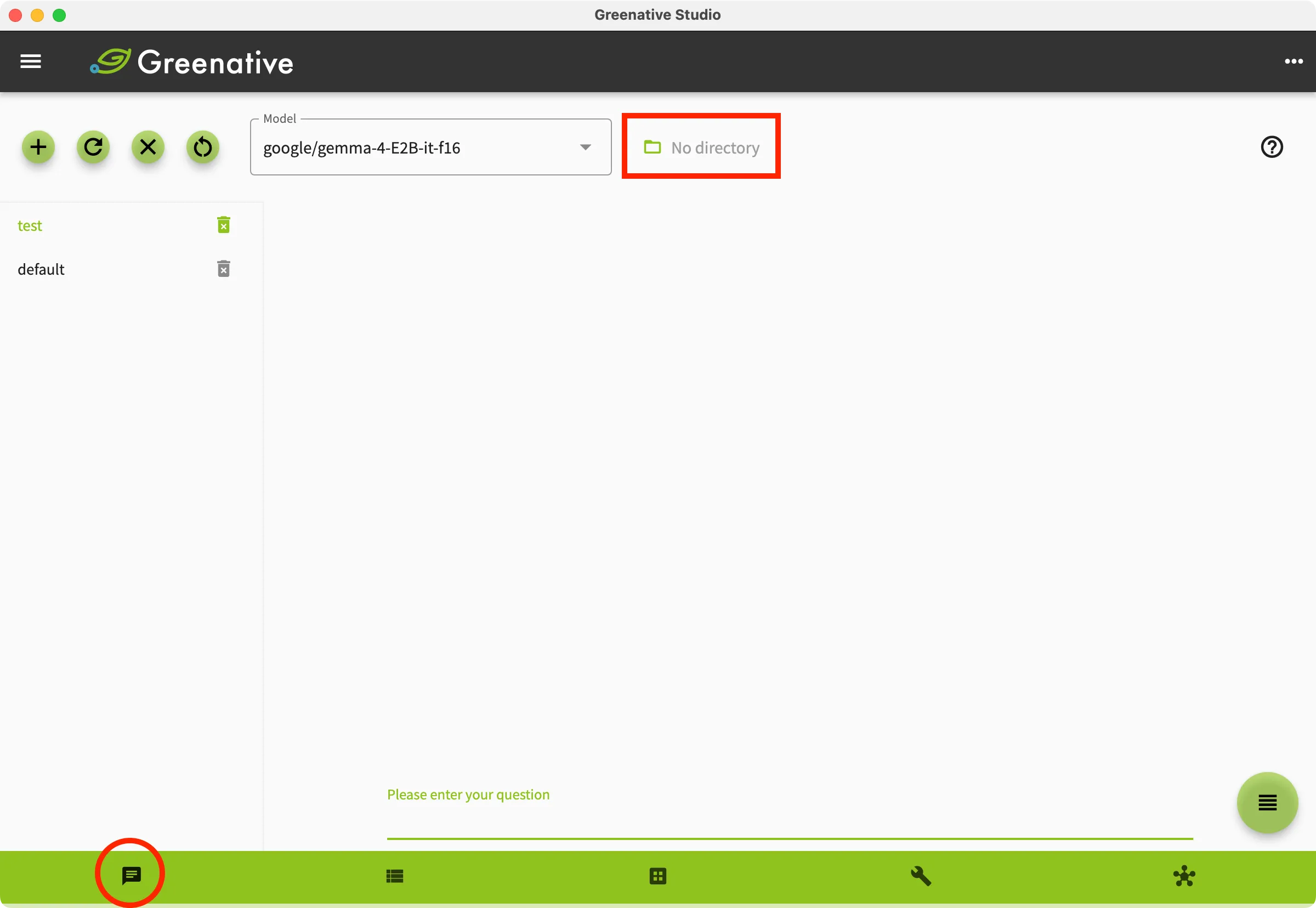 |
4. Click “Chat” on the bottom navigation bar to open the chat screen. Click the red highlighted area to select the working directory. |
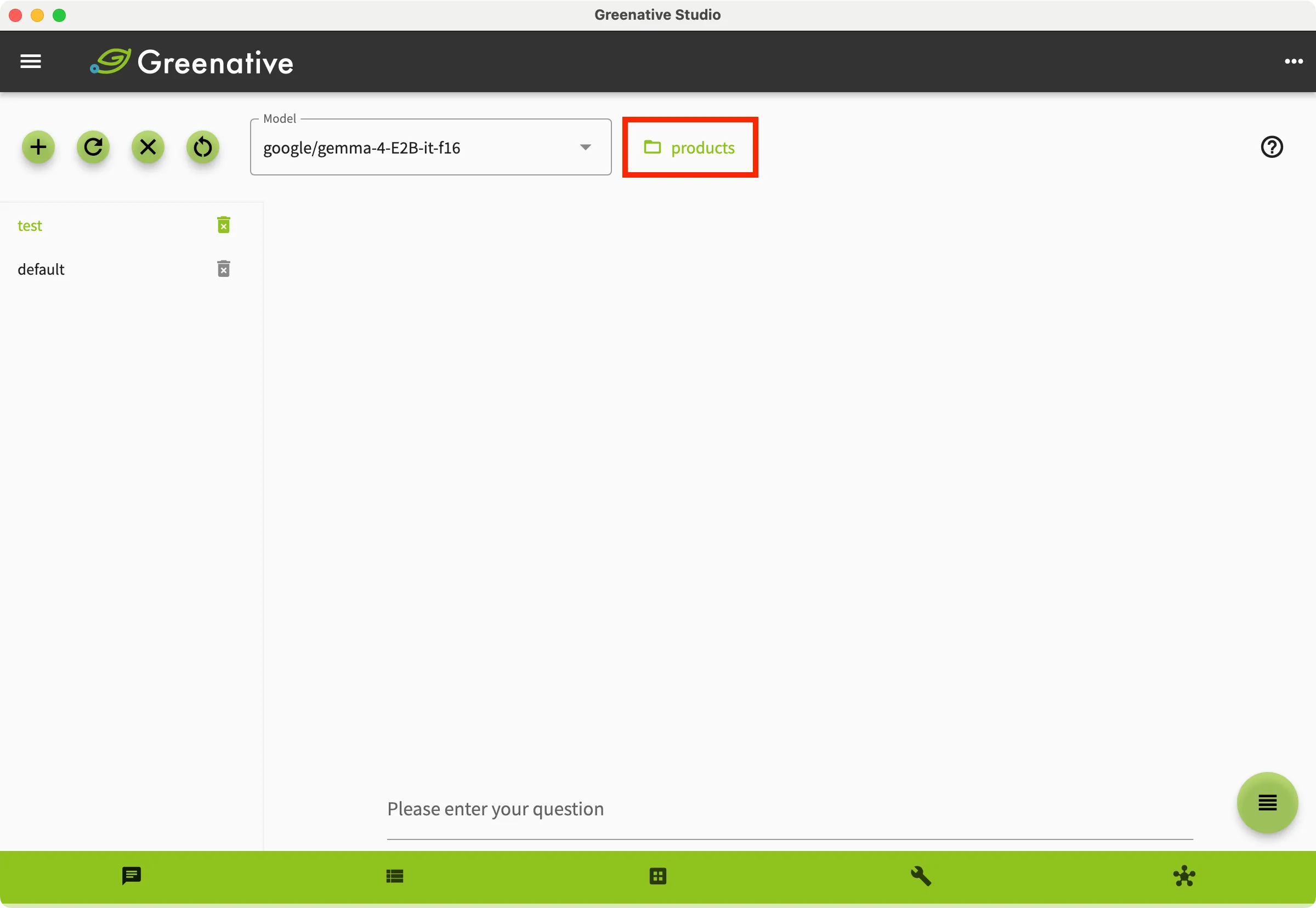 |
5. The local working directory is selected. |
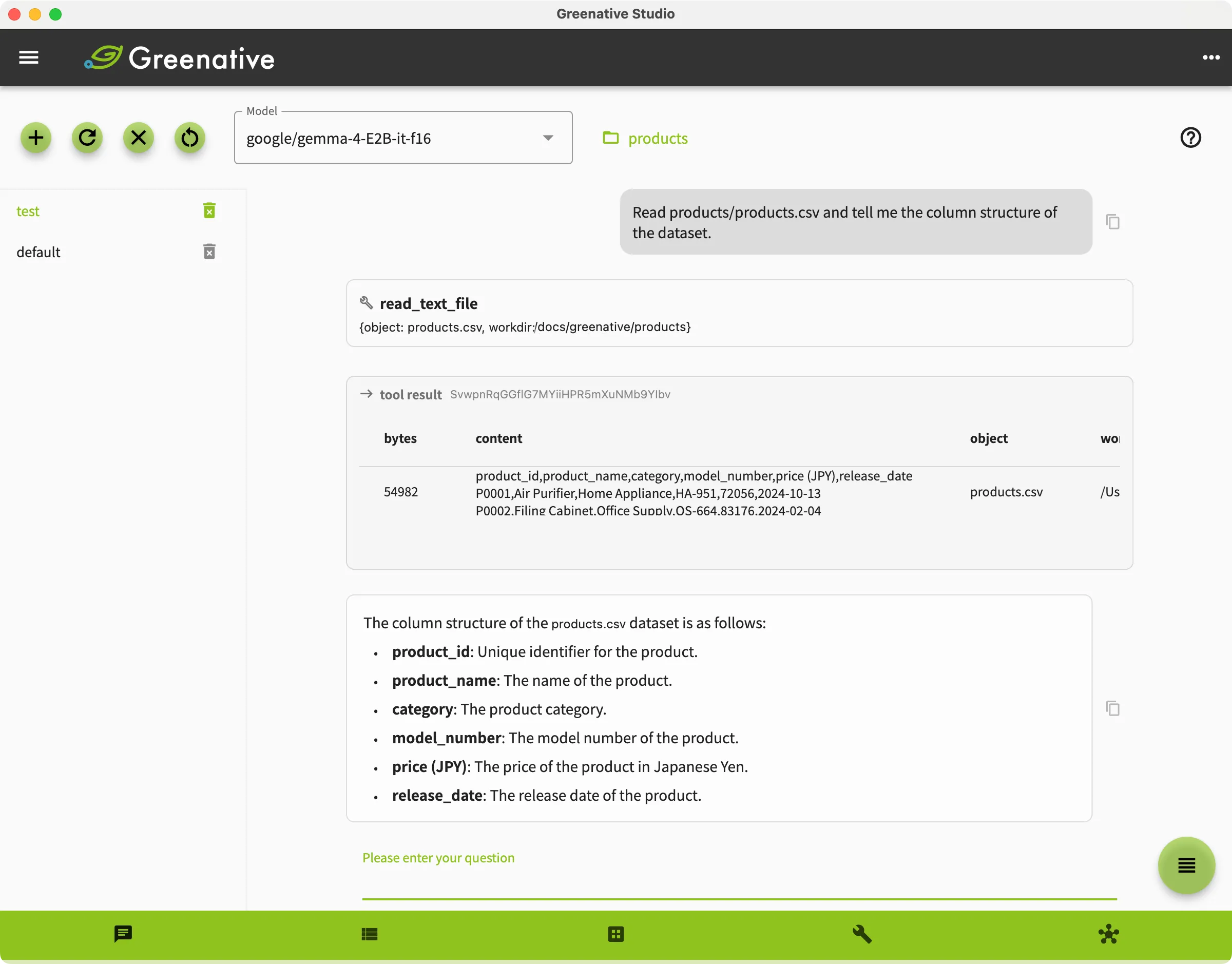 |
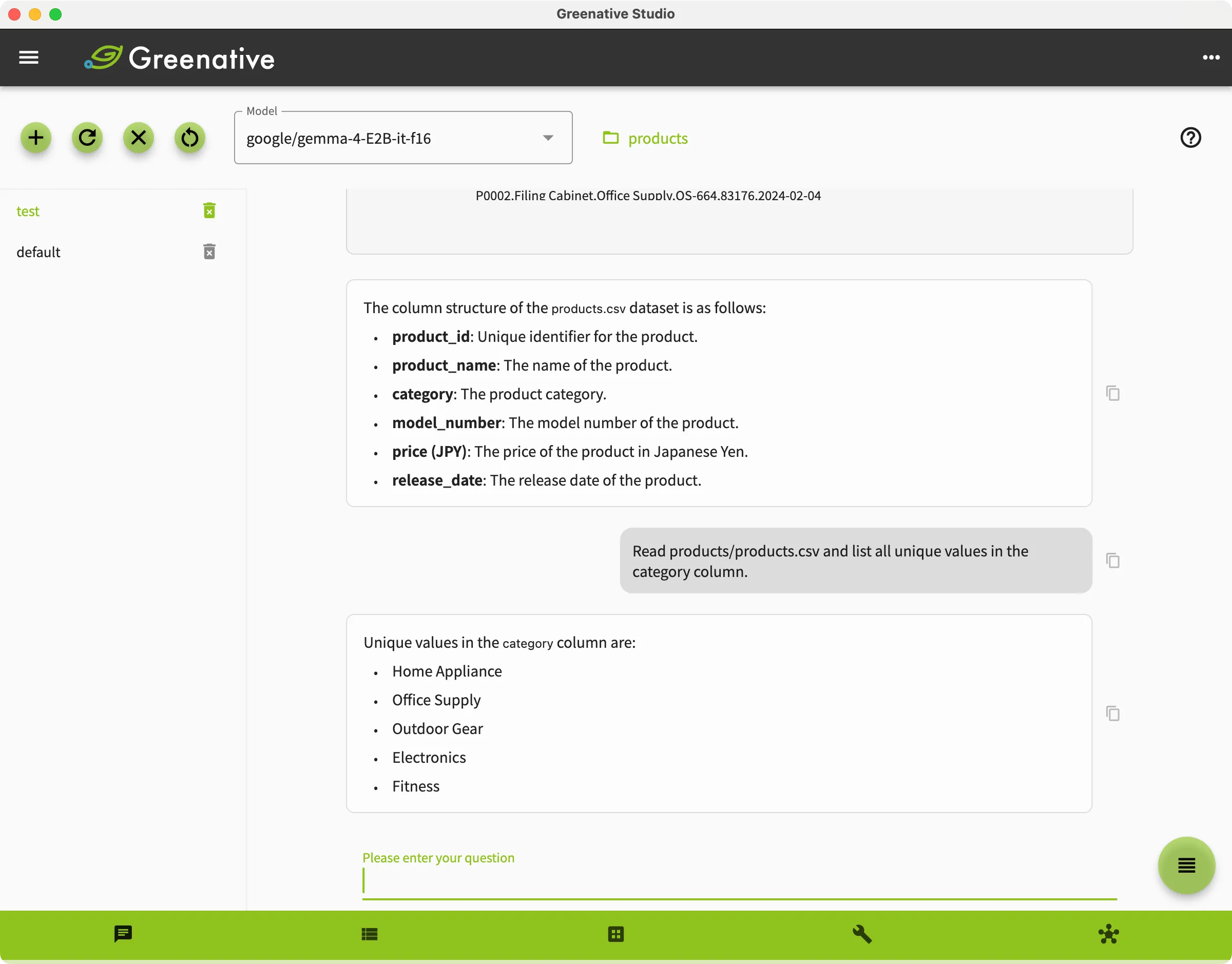
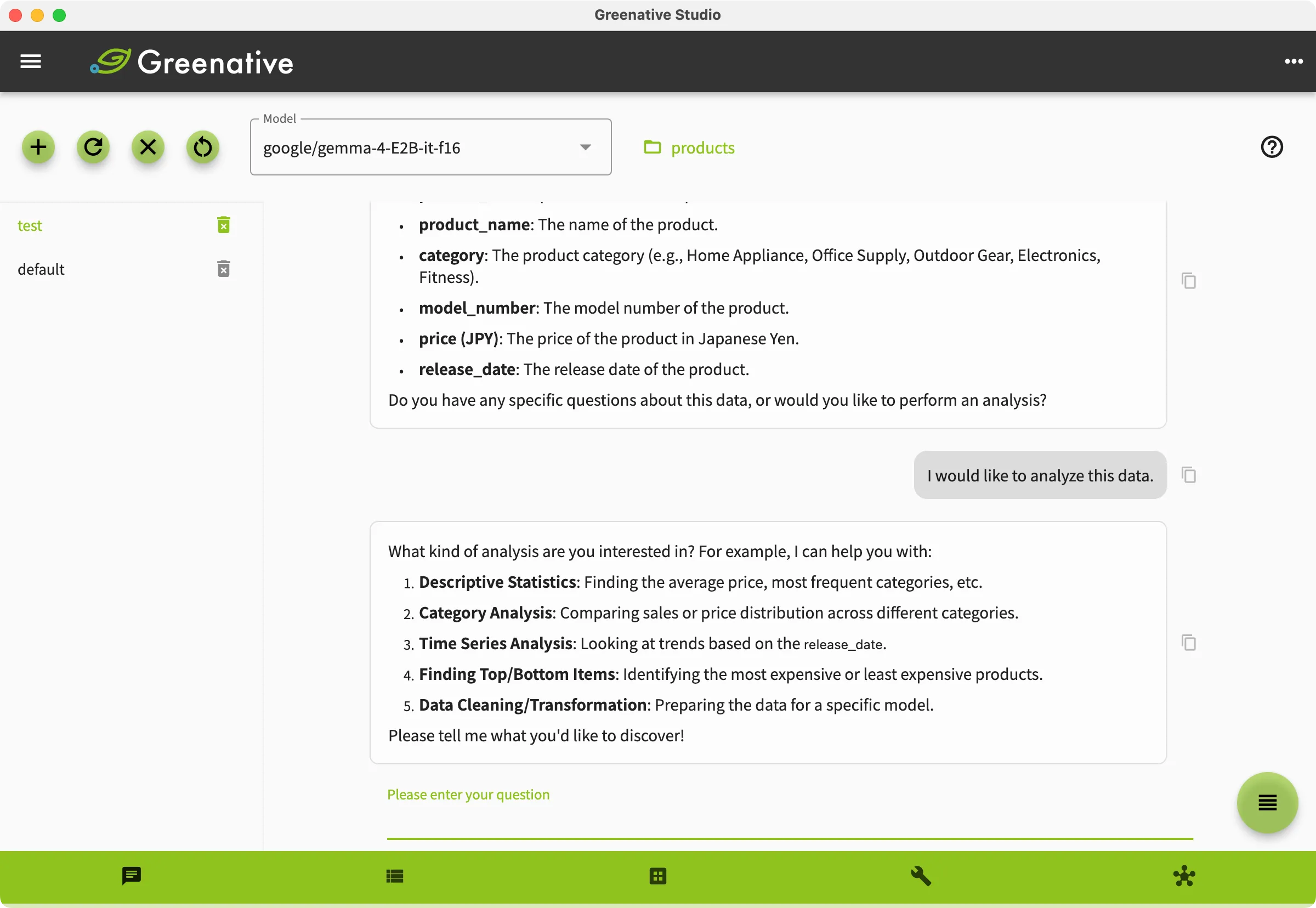
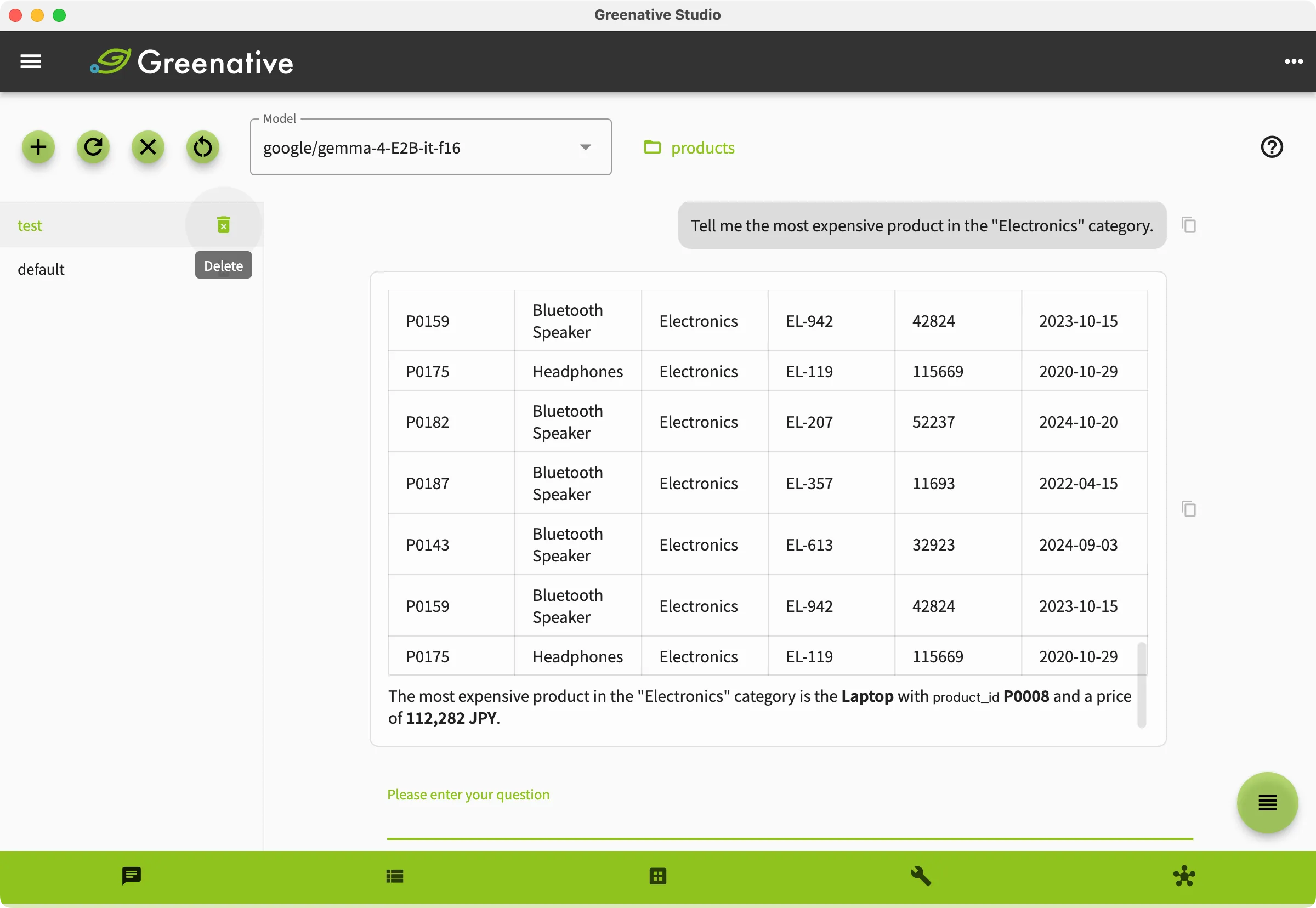
6. You can read and analyze files in the working directory within a thread. In the example on the left, the structure of the columns in the “products.csv” file within the working directory is checked, and data aggregation is performed. |
 |
|
 |
|
 |